6. Payouts via Stripe
To receive money from bookings, you need to connect a Stripe account. This is how the platform pays out your booking revenue directly to your bank account — with zero commission taken by the platform.
Step 1: Start Stripe Connect onboarding
From your owner dashboard (typically on the Campsites page), you'll see a banner prompting you to connect your Stripe account if you haven't done so yet.
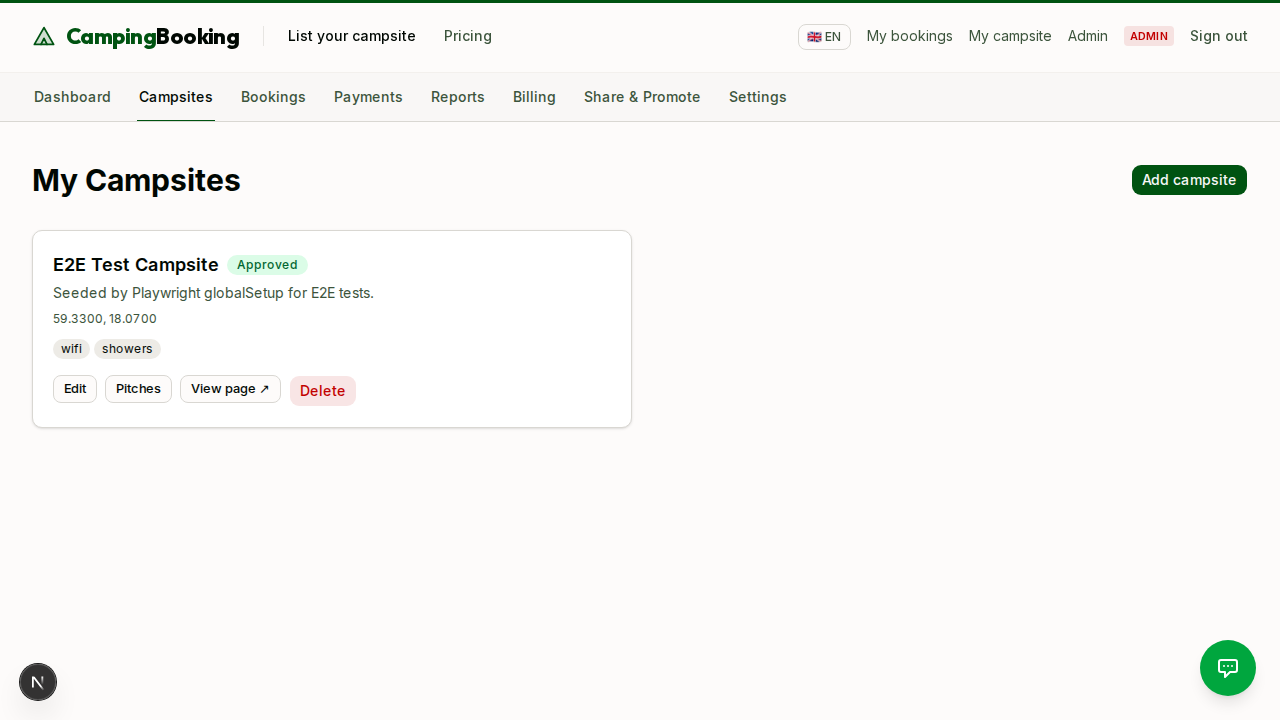
Click Connect with Stripe to begin. The platform opens Stripe's hosted onboarding in a new tab, so you can keep the payouts page open while you finish setup.
Step 2: Complete Stripe's onboarding form
Stripe will ask for:
- Business or individual details (name, address, date of birth)
- Bank account details for payouts
- Identity verification documents (depending on your country's requirements)
This information is collected and verified directly by Stripe — the platform never sees or stores your bank details or identity documents.
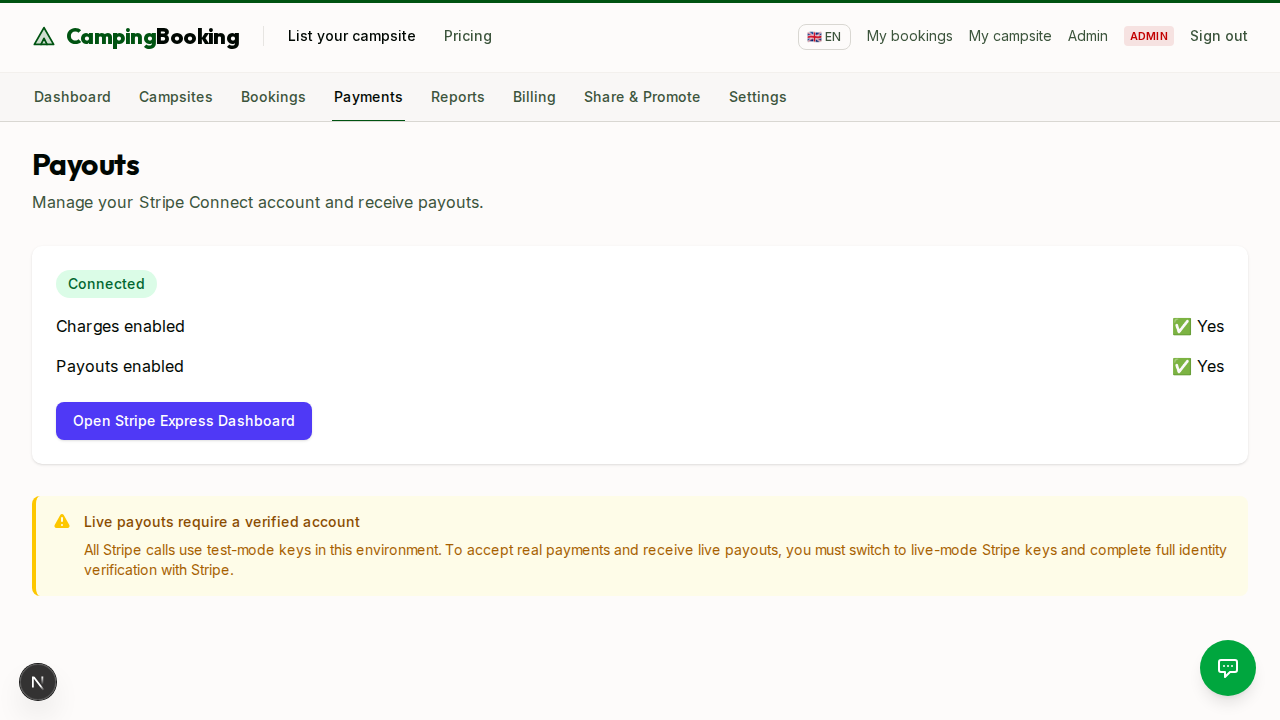
Step 3: Return to the dashboard
Once you've completed Stripe's onboarding steps, return to your owner dashboard. The payouts page polls Stripe Connect status and refreshes automatically when your account state changes, so you don't need to manually reload to see the latest verification status.
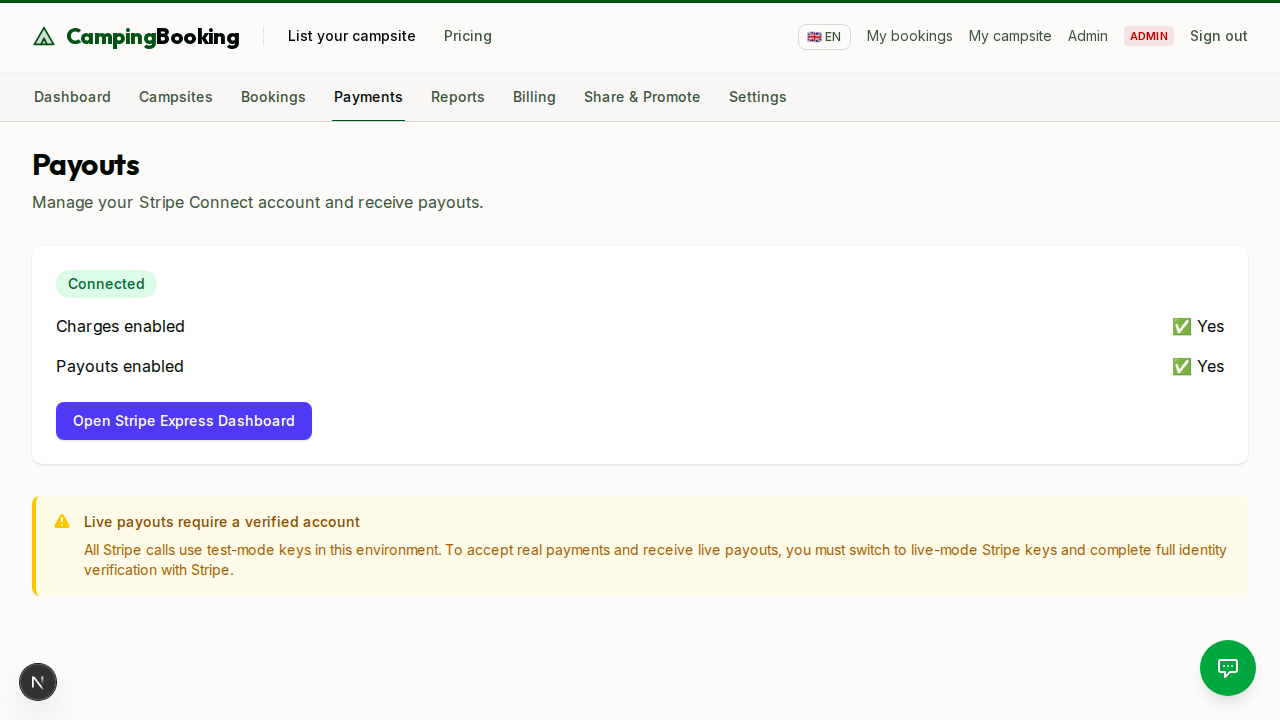
Note: Stripe verification can take anywhere from a few minutes to a couple of days depending on your country and the documents required. You can keep managing your campsite and pitches in the meantime, but bookings can't be confirmed (and funds can't be captured) until your Stripe account is fully verified.
Step 4: Receiving payouts
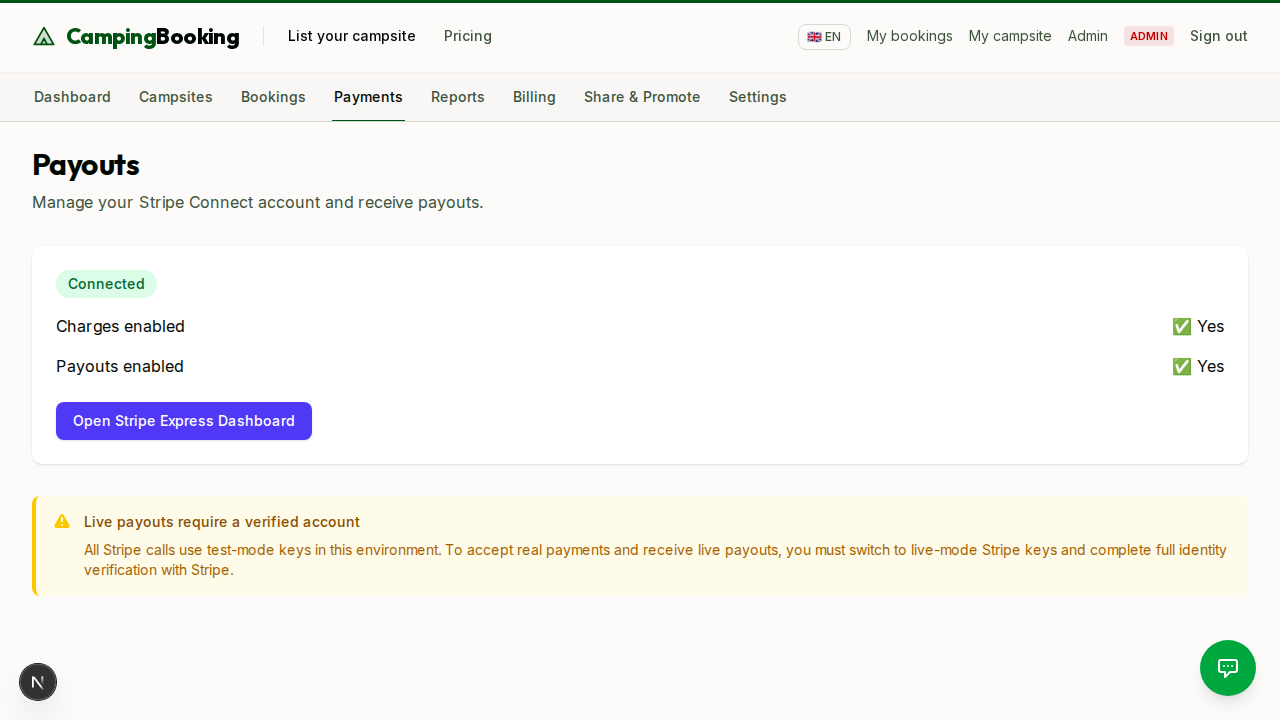
Once connected, payments from confirmed bookings are processed through Stripe and paid out to your linked bank account on Stripe's standard payout schedule for your country. You receive 100% of your listed price — campers separately pay a 3% booking fee on top, which goes to the platform.
Visual walkthrough
Stripe Connect onboarding involves several steps and varies by country, which can be confusing the first time through. See your payouts and connect status in context in the visual walkthrough: after signup.
Next: Visual walkthrough: after signup
Back to: Owner Onboarding Guides overview